

Key Takeaways
- Keyword cannibalization happens when two or more pages on your site target the same keyword and serve the same reader intent – causing Google to split ranking signals between them instead of boosting one strong page.
- Two pages ranking for the same keyword is not always a problem – the real issue is when both pages fulfill the exact same purpose for the searcher.
- 68% of websites have significant keyword cannibalization, with the average site ranking 4.7 URLs per top keyword.
- The fastest free check: type site:yourdomain.com “your keyword” into Google and look for multiple results from your own site.
- Google Search Console is the most reliable free tool – click a keyword in the Performance report, then switch to the Pages tab to see how many of your URLs are competing for it.
- For larger sites, export GSC data to Google Sheets and use a Pivot Table to identify keywords with 2+ ranking pages at scale.
- To fix cannibalization: consolidate pages with a 301 redirect, differentiate intent, add a canonical tag, or noindex the weaker page.
- Prevention is easier than fixing – always run a site: search before publishing a new article on any topic you’ve covered before.
You’ve been publishing content consistently. Your pages look good. But your traffic isn’t growing – and sometimes it even drops.
One of the most overlooked reasons for this? Your own pages are competing against each other. This is called keyword cannibalization, and the troubling part is that most website owners don’t even know it’s happening.
The good news: you don’t need to pay for Ahrefs, Semrush, or any other premium tool to find it. Everything you need is either free or already sitting in your Google account.
This guide will show you exactly how to find cannibalized keywords on your website – step by step – using nothing but free methods.
What Is Keyword Cannibalization, Really?
Keyword cannibalization happens when two or more pages on your website target the same keyword and serve the same purpose for the reader.
Google then has to decide which of your pages to show. And here’s the problem – it often picks the wrong one. Or it rotates between both, giving neither page the authority it needs to rank well.
Think of it this way: imagine you opened two identical shops on the same street. Instead of dominating the area, you’d just be splitting your own customers in half. (Yes, your website can be its own worst enemy. Relatable, honestly.)
But here’s what most guides get wrong:
Two pages ranking for the same keyword is NOT automatically a problem.
If Apple has three pages ranking for “MacBook Pro 13 inch” – one for features, one for checkout, one for specs – that’s not cannibalization. Each page serves a different purpose for a different type of buyer.
Real cannibalization only happens when:
- Multiple pages target the same keyword, AND
- They fulfill the exact same search intent (the reader would find both equally useful or repetitive)
A 2026 study analyzing the top 25 traffic-driving keywords across 100 major websites found that 68% of sites had significant cannibalization, with the average site ranking 4.7 URLs for every top keyword. Only 12% of sites demonstrated what the study called “excellent control” – 1 to 2 URLs per keyword.
The impact is especially damaging for newer or smaller websites. Sites with a Domain Rating below 50 that had 3 or more competing URLs consistently ranked lower (positions 8–20) compared to competitors who had consolidated their content into one strong page.
The 4 Signs Your Website Has a Cannibalization Problem
Before you go hunting, here are the warning signs to look out for:
1. Your rankings bounce up and down for no reason
One week you’re at position 5, the next you’re at position 14 – and you haven’t changed anything. This happens because Google is switching between your competing pages, unsure which one to prioritize.
Also Read: Why New Websites Rank Briefly Then Disappear
2. A page you didn’t intend to rank is getting the traffic
This is particularly painful for business owners. You write a detailed blog post about a topic, and Google sends all the traffic there, but your actual product or service page for that same topic sits on page 3. The blog post wasn’t designed to convert, so visitors leave without buying.
Related Read: Why Does My Page Rank for the Wrong Keywords?
3. Your impressions are high in Google Search Console, but clicks are low
If multiple pages split the impressions for one keyword, your click-through rate suffers because Google may show one page sometimes and another page at other times – and neither builds enough momentum to get top clicks.
4. You have old articles on similar topics from years ago
This is the most common cause. As websites grow, it’s natural to write about the same topic more than once, especially if your older articles feel outdated. But unless you redirect or consolidate them, they silently compete.
Method 1: Google Search Operator (The Fastest Check)
This takes under 60 seconds and requires zero tools.
Go to Google and type this into the search bar:
site:yourwebsite.com “your keyword”
Example:
site:marketomon.com “content marketing”
If you see two or more of your own pages appearing in the results – especially if they cover similar angles – that’s a cannibalization signal.
What to look for:
- Two blog posts with similar titles
- A blog post and a category page targeting the same term
- An older article and a newer one covering the same topic
The limitation of this method: Google’s site: operator doesn’t always surface every page, and it doesn’t tell you how close those pages are actually ranking for the keyword. Use this as a quick first scan, not a complete audit.
Method 2: Google Search Console (The Most Reliable Free Method)
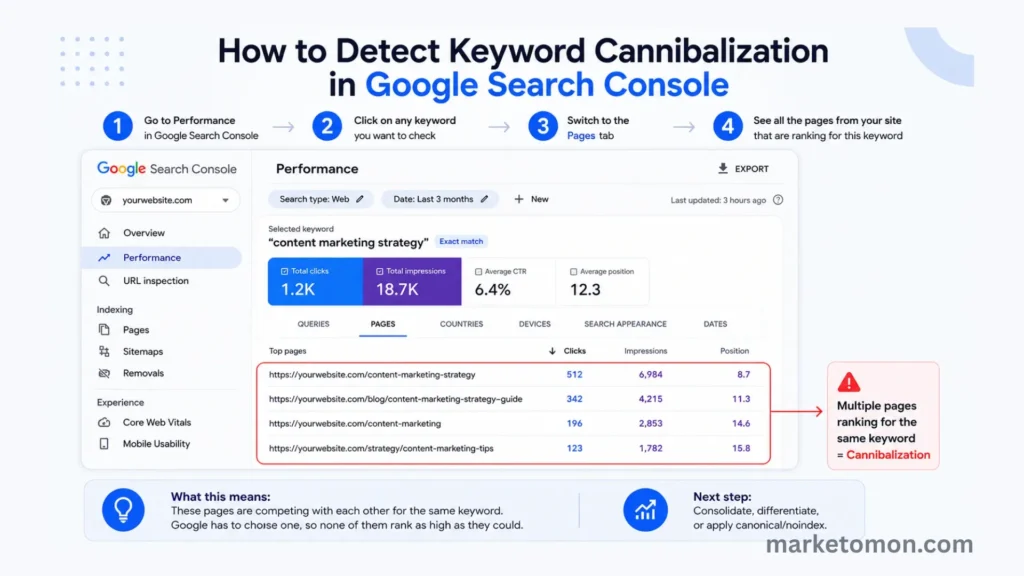
Google Search Console (GSC) gives you real ranking data directly from Google. This is the most accurate way to find cannibalization without any paid tools.
Step 1: Open the Performance Report
Log in to Google Search Console and click “Search results” under the Performance section in the left sidebar.
Step 2: Click on a Keyword You Want to Check
Scroll down and you’ll see a list of all the queries your site appears for. Click on any keyword that you want to investigate – for example, “content marketing strategy.”
This applies a filter so you’re only seeing data for that specific keyword.
Step 3: Switch to the Pages Tab
After clicking the keyword, scroll down and click on the “Pages” tab (next to the Queries tab).
This is the key step. You’ll now see which pages on your site are getting impressions and clicks for that keyword.
What a healthy result looks like: One URL. One page earns all the visibility for that keyword.
What a cannibalization problem looks like: Two or more URLs appearing, especially if both have low or similar positions and neither is ranking above position 5.
Step 4: Check the Position Numbers
If you see:
- Page A at position 4, Page B at position 9 → Likely a real problem
- Page A at position 2, Page B at position 40 → Probably not a serious issue (Page B is barely visible)
The concern is when two pages are competing closely. One page could be dominating if the other wasn’t splitting the ranking signals.
Step 5: Repeat for Your Most Important Keywords
Don’t try to check every keyword at once. Start with the 10–15 keywords that matter most to your business – your main topics, your service-related terms, and anything you’ve written about more than once.
Method 3: The GSC + Google Sheets Export (For Bigger Sites)
If your site has a lot of content, checking keywords one by one in GSC gets tedious fast. Here’s how to do a full audit using a free export.
Step 1: Export Your GSC Data
In Google Search Console → Performance → Click the Export button (top right) → Select “Google Sheets”
This gives you a spreadsheet with all your queries, pages, clicks, impressions, positions, and CTR.
Step 2: Set Up a Pivot Table
In Google Sheets:
- Select all your data
- Go to Insert → Pivot table
- Set Rows to: Query (your keywords)
- Set Values to: Page (count distinct)
This creates a table that shows you, for each keyword, how many different pages are ranking for it.
Any keyword showing 2 or more pages is a potential cannibalization issue.
Step 3: Filter for the Biggest Problems
Sort by the “count of pages” column – descending. The keywords at the top, where 3 or 4 of your pages are all showing up, are your highest priority issues.
Then cross-reference their positions. If multiple pages are competing in the top 20 results for the same keyword, those need attention first.
Method 4: Manual Content Audit (For Small Sites)
If your website has fewer than 50 articles, you can do a simple manual check without any tools at all.
Create a basic spreadsheet with three columns:
- Article title
- Main target keyword
- URL
(Yes, a plain old spreadsheet. No AI, no Chrome extension, no 14-day free trial. Just you and your content.)
Once you’ve listed all your content, scan for keywords that appear more than once. If you have two articles both targeting “email marketing tips” – that’s a flag.
Then ask yourself: Do both articles answer the same question? If someone searching for that keyword would find both articles equally useful, you have a cannibalization issue.
How to Tell Real Cannibalization from False Alarms
Not every overlap is a problem. Here’s a simple test to decide:
Ask: Does each page serve a different purpose for the reader?
| Scenario | Cannibalization? |
|---|---|
| Two blog posts covering the same topic for the same audience | Yes |
| A blog post (informational) + a product page (transactional) for the same keyword | Usually no |
| An old 2021 article and a new 2024 article on the same topic | Yes – consolidate |
| Category page + individual post both ranking for the same term | Depends – check intent |
The intent test is everything. If a reader searching for that keyword could use either page interchangeably, it’s real cannibalization.
What to Do Once You Find a Cannibalized Keyword
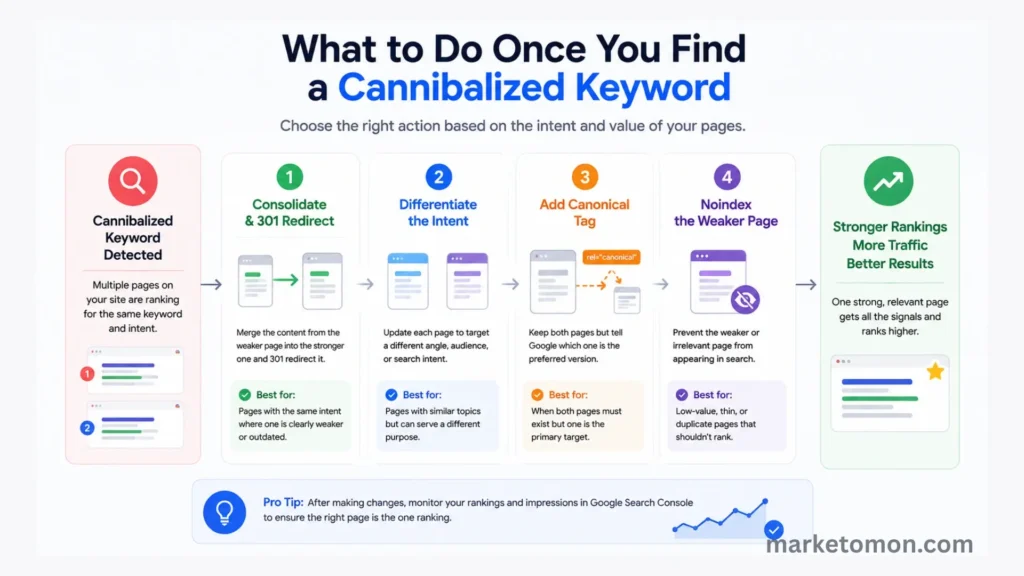
Finding the issue is half the battle. Here’s what to do next:
Option 1: Consolidate (most common fix)
Pick the stronger page – whichever has more backlinks, more traffic, and better content. Then rewrite it to include the best parts of the other page. Finally, set up a 301 redirect from the weaker page to the stronger one.
Backlinko used this approach with two of their own articles that were cannibalizing each other. After consolidating them with a 301 redirect, they saw a 466% increase in clicks year over year.
Option 2: Differentiate
If both pages genuinely serve different needs (one is a beginner guide, one is an advanced tutorial), make that difference crystal clear – in the title, the intro, and the content itself. Strengthen internal links so Google understands the hierarchy.
Option 3: Add a Canonical Tag
If you need both pages to stay live (for UX or technical reasons) but want Google to favor one, add a rel=”canonical” tag on the weaker page pointing to the stronger one. This tells Google which page you prefer to rank.
Option 4: Noindex the Weaker Page
If a page has no backlinks, very little traffic, and exists mainly for internal purposes (like a tag page or a thin archive), you can add a noindex tag to remove it from Google’s index entirely. Use this as a last resort.
How to Prevent Cannibalization Before You Write
The easiest fix is avoiding the problem in the first place. Before publishing any new article, do a 30-second check:
site:yourwebsite.com “your intended keyword”
If a page already exists that targets the same keyword for the same type of reader, don’t write a new article. Update and improve the existing one instead.
This is one of the most underrated SEO habits. Publishing fewer, stronger articles beats publishing many thin or overlapping ones every single time.
Related Read: What Happens If You Publish 10 Blogs in One Day on Your Website
A Quick Checklist to Save
Here’s your full process in one place:
- Run site:yourdomain.com “keyword” for your top 10–15 topics
- Open GSC → Performance → click a keyword → check the Pages tab
- Look for any keywords with 2+ URLs ranking in the top 20
- For bigger sites: export GSC data to Google Sheets and build a pivot table
- For each conflict: apply the intent test (same purpose = real cannibalization)
- Fix using consolidation, differentiation, canonical, or noindex
- Before publishing any new article, always check if a page already exists for that keyword
Final Thought
Keyword cannibalization is one of those SEO problems that hides in plain sight. It doesn’t cause an error. Google doesn’t notify you. It just quietly limits how well your pages rank – often for years.
The methods above give you everything you need to find and fix it without spending a rupee on paid tools. Start with Google Search Console, run the intent test on anything that looks suspicious, and consolidate where needed.
One strong page always beats two average ones fighting each other.